Over the past year, I've had the privilege of getting to know over 75% of the teachers in my district during my travels as an ET. My skills as a teacher have soared during this time, because I've been able to have in-depth pedagogical discussions with a great number of experienced and master teachers.
Also during this time, I've been working on completing my Master's Degree in Educational Leadeship through the University of Lethbridge. The research and knowledge that I have accumulated throughout that program has helped inform my practice as an ET, leading me to even greater heights.
Below is my capstone presentation, the final activitiy of the program:

Saturday, December 4, 2010


Wednesday, December 1, 2010
Don't Re-invent the Wheel! Check out Smart Exchange.
If you would have asked my opinion about the Smart Exchange website two years ago, I wouldn't have spoken very positively about it. What a difference two years can make!
The Smart Exchange is now the best resource for finding lessons to use on your Smartboard. If you are lucky enough to have access to a Smart Response system (formerly Senteo), you can also find pre-made question sets. There are also other types of Notebook files that can be found there such as attendance files (search term: attendance) or kooshball activitites (search term: kooshball).
To begin with, I always like to start by searching through the "Standards-Correlated Resources" which allows you to search through specific Programs of Study. Make sure you change to the Canadian version of the website, as the US version is usually the default (top right corner, click on the flag).
Standards-correlated searches do not always reveal every resource that relates to the outcomes you are trying to teach, so it is always a good idea to do a search from the main page as well. To take a quick look at your search results without downloading or opening any files, click on the preview window. This will allow you to cycle through the slides in the file, however, any flash interactive pages will not show up properly. For these pages, you'll need to download or open up the entire file.

When you find a file you'd like to use, or a selection of pages, there is a simple way to copy them into your own Notebook file. I quite often take a few pages from each resource and compile them into my own lesson. Watch the video below to see how:
The Smart Exchange is now the best resource for finding lessons to use on your Smartboard. If you are lucky enough to have access to a Smart Response system (formerly Senteo), you can also find pre-made question sets. There are also other types of Notebook files that can be found there such as attendance files (search term: attendance) or kooshball activitites (search term: kooshball).
To begin with, I always like to start by searching through the "Standards-Correlated Resources" which allows you to search through specific Programs of Study. Make sure you change to the Canadian version of the website, as the US version is usually the default (top right corner, click on the flag).
Standards-correlated searches do not always reveal every resource that relates to the outcomes you are trying to teach, so it is always a good idea to do a search from the main page as well. To take a quick look at your search results without downloading or opening any files, click on the preview window. This will allow you to cycle through the slides in the file, however, any flash interactive pages will not show up properly. For these pages, you'll need to download or open up the entire file.

When you find a file you'd like to use, or a selection of pages, there is a simple way to copy them into your own Notebook file. I quite often take a few pages from each resource and compile them into my own lesson. Watch the video below to see how:
Monday, November 22, 2010
Bring out the Gimp!
I've always been interested in photo editing but never had the opportunity (or funds) to learn how to use Photoshop. Paint has allowed me to resize, crop, delete and edit photos for years, even though it is quite rudimentary and simple. Microsoft Office Picture Manager has shown me that there are more options to do the same painstaking things in less time.
Then one day, I discovered an icon which I hadn't seen before on my desktop. GIMP (GNU Image Manipulation Program). In essence, GIMP is a Photoshop-like program with one major benefit - IT'S FREE!
The program itself seemed quite intimidating at first, however, after searching Youtube, I've found a number of handy videos that have helped me learn.
Here are some pictures that I've manipulated using GIMP:

Selective Colorization (Youtube Video):
 Cutting out a picture - "Photoshopping" (Youtube Video):
 There are a number of other techniques that can be done with GIMP including face replacement, teeth whitening, blemish removal, skin airbrushing, and pop art creation.
Then one day, I discovered an icon which I hadn't seen before on my desktop. GIMP (GNU Image Manipulation Program). In essence, GIMP is a Photoshop-like program with one major benefit - IT'S FREE!
The program itself seemed quite intimidating at first, however, after searching Youtube, I've found a number of handy videos that have helped me learn.
Here are some pictures that I've manipulated using GIMP:

Selective Colorization (Youtube Video):
 Cutting out a picture - "Photoshopping" (Youtube Video):
 There are a number of other techniques that can be done with GIMP including face replacement, teeth whitening, blemish removal, skin airbrushing, and pop art creation.
Tuesday, November 9, 2010
Comics in the Classroom
When you work with people whom you respect and whom you like and you admire because they're so good at what they do, it doesn't feel like work... It's like you're playing.
Stan "The Man" Lee
As the Dalai Lama of the comic book world, Stan Lee knows a thing or two about story writing. His words of wisdom serve two purposes here. First, this quote illustrates (pun intended) how I often feel about my job working with teachers across our district. Secondly, I would be amiss if I didn't mention Stan Lee in some capacity on a blog post dealing with comics in the classroom. 'Nuff Said.
Comics are an excellent option for students to express themselves when writing. They can be an effective tool for motivating students who do not take interest in "normal" types of writing. Even for ESL students, comics can offer a method of storytelling that requires less text and is more manageable. They can communicate their ideas through both text and drawing. Read this article or this blog for more information about using comics in the classroom or find more helpful links here.
While there are a number of pay for use comic sites for education, here are a sampling of my favourite free options:
Official Super Hero Squad Show - options to create a comic strip or a comic book with Marvel characters. Very customizable and colourful. When you are finished, you can either print or download as a pdf file.

ReadWriteThink - online comic creator with lesson plans for classroom inclusion. Simple to use and has an option to print when you're finished.
Witty Comics - comic strip creator where students can customize backgrounds, characters, and add narration. You have the option to save online and print afterwards.

Comics Master - graphic novel creator. Customizable page layouts, backgrounds and a number of characters to choose from. You can save and print your graphic novel.

StripGenerator - comic strip creator that allows you to make customized frames as well as select from a number of characters and items. You can print your comic strip when finished.
ToonDoo - Easy to use comic strip creator with tons of clip art. You also have the option of uploading pictures from your computer. Use Smart Notebook Screen Capture to save your pictures.

To save your comics as picture files, watch this video.
Monday, November 1, 2010
Word Clouds
Word Clouds are a fantastic visual for any situation where writing is involved. WordItOut defines them as "an attractive arrangement of randomly positioned words, where the most important words are bigger than the others." You simply access a web cloud website (see examples below) and paste in your text. The words with the highest frequency in a selection of text become the most prominent in the picture. You could use this to analyze key themes in writing. For instance, here is a word cloud generated from Winston Churchill's famous speech "Blood, Toil, Tears and Sweat" on the website Wordle:
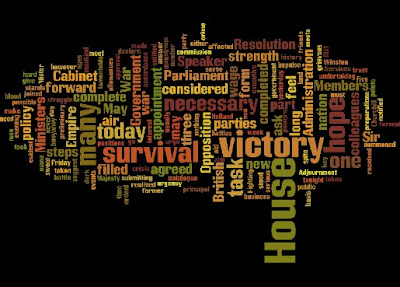 Another way to use word clouds is to analyze students' writing, checking for themes or even words that are being overused. Here is a word cloud generated from my master's capstone paper using the website Tagxedo (my personal favourite):
 Other uses for word clouds include comparing and contrasting writing (analyzing the difference between 2 different speeches), creating word walls, analyzing historical documents (ie: Canadian Charter of Human Rights), polling your class, or creating a gift (What words would you use to describe Mr. Cunningham?).
There are a number of different websites that allow you to create word clouds. Each one has slightly different features than the others, usually in terms of how you can customize the look of your word cloud. My best advice is to try them out for yourself. Here are a few of my favourites:
Wordle - the most famous and easy to use
Tagxedo - customize the shape of your word cloud
ABCya - easy to use
WordItOut - lots of options to customize
Tagul - click on any of the words to initiate a google search. Great for vocabulary.
TagCrowd - basic word cloud website
TagCloudGenerator - creates word clouds from web site URLs
If you are having trouble downloading or saving your word cloud, the video in this blog post will help you out.
Here is a word cloud of Hamlet's soliloquy from the website ABCya:

 Another way to use word clouds is to analyze students' writing, checking for themes or even words that are being overused. Here is a word cloud generated from my master's capstone paper using the website Tagxedo (my personal favourite):
 Other uses for word clouds include comparing and contrasting writing (analyzing the difference between 2 different speeches), creating word walls, analyzing historical documents (ie: Canadian Charter of Human Rights), polling your class, or creating a gift (What words would you use to describe Mr. Cunningham?).
There are a number of different websites that allow you to create word clouds. Each one has slightly different features than the others, usually in terms of how you can customize the look of your word cloud. My best advice is to try them out for yourself. Here are a few of my favourites:
Wordle - the most famous and easy to use
Tagxedo - customize the shape of your word cloud
ABCya - easy to use
WordItOut - lots of options to customize
Tagul - click on any of the words to initiate a google search. Great for vocabulary.
TagCrowd - basic word cloud website
TagCloudGenerator - creates word clouds from web site URLs
If you are having trouble downloading or saving your word cloud, the video in this blog post will help you out.
Here is a word cloud of Hamlet's soliloquy from the website ABCya:

Subscribe to:
Posts (Atom)